TL;DR: SquarePact's Word add-in now connects to Dropbox. Ask it to find and read the contracts, policies, proposals, and other reference files you already keep there, and it'll use them in whatever you're working on. It reads from Dropbox, and every edit to the document in front of you is still yours to approve.
Everything you need to write the document is in Dropbox. The document is in Word. You are the part in the middle, carrying material back and forth by hand.
Search the folder tree, open three files that weren't it, find the passage, paste it into an AI chat, carry the answer back into Word, clean up the formatting it dragged along. None of that is writing. It's the toll you pay before you get to write.
Why does using a Dropbox file still feel like a document scavenger hunt?
Because storage and document work don't agree on what finished looks like. Dropbox has done its job when the file is organized, permissioned, and findable. You've done yours when the right language lands in the right spot in Word, still means what it meant, and hasn't wrecked the document around it. Those aren't the same finish line, and the gap between them shows up as the same five problems, over and over.
1. Finding a filename isn't the same as finding an answer
Search works great when you know what the file is called. Real shared folders don't stay that tidy. You end up with "Final," "Final v2," "Executed," "Client edits," and the ever-popular "Use this one," and the clause you're after is usually buried inside a 70-page agreement whose title says nothing about it.
So "find our approved limitation of liability language" turns into a guessing game. Search a filename, open it, search inside it, close it, try the next result, repeat until something looks familiar enough to trust.
And every one of those steps happens outside the document you're supposed to be writing. The context you need lives in Dropbox, the writing happens in Word, and you're the one carrying material back and forth between them. The searching isn't the work. It's the toll you pay before the work starts.
2. General AI turns reference files into a manual upload queue
A general-purpose chatbot can analyze a file once you give it the file. That last bit is doing a lot of quiet work.
You still have to pick the right Dropbox file, download it, upload it into the right conversation, explain what it is, and do the whole thing again when the task needs a second source. Every source you want it to consider is another round of download, upload, and explain.
Every new conversation starts from zero, too. Your files might be beautifully organized in Dropbox, but the AI doesn't know that until you rebuild the context by hand.
3. Copy-paste disconnects the answer from its source
Copy one passage into chat and the AI sees the passage, not the document around it. The exception might be sitting in the next paragraph. A defined term might mean something narrower twenty pages later. You're handing over a fragment and asking for judgment about a whole file.
Then the answer has to make the return trip into Word, and pasting drags styles, list definitions, and spacing along with it. Even when the words are right, you're doing another cleanup pass.
We ran four surveys of Word-heavy professionals in May 2026. In one wave, 25 of 26 respondents (96%) said they had to clean up formatting before sending an important document. In a separate wave of 71 people, 66% named formatting consistency as an ongoing workflow problem. In that world, moving text between applications isn't a minor annoyance. It's one of the main ways a document you trusted stops being one.
4. Shared folders don't remove the permission bottleneck
A team folder can hold exactly what you need and still leave you waiting on somebody to point at it. That's why "which agreement should I use?" and "can you send me the latest policy?" never stop landing in your messages. Knowing a file exists isn't the same as knowing where it is or whether you can rely on it.
It gets worse the more teams are involved. Legal, procurement, sales, compliance, and operations each file things their own way, so whoever's writing the document ends up translating five filing systems on top of the actual work.
5. The answer still stops short of the document
Say everything goes right. You find the file, the AI reads it correctly, the answer is good. You still have to turn that answer into a precise edit in Word, which means deciding where it belongs, adapting it to the current parties and defined terms, keeping the structure intact, and checking what actually changed.
A chatbot hands you the raw material and leaves the last and most consequential step entirely manual. For anything that matters, retrieval is the middle of the job. The start is understanding what the document in front of you needs, and the end is a controlled change somebody can inspect before it becomes part of the record.
SquarePact now brings Dropbox into the Word conversation
SquarePact now connects to Dropbox through the Model Context Protocol, or MCP. What that means day to day: the SquarePact Agent in Word can use Dropbox's remote MCP server to search the account you authorize, browse folders, check file details, and read supported files, all inside the conversation you're already having about your document.
No downloading, no uploading to another chatbot, no pasting excerpts between windows. You just say what you need the way you'd say it to a colleague: the agreement from that customer, the current security policy, the approved clause, the backup for a form. SquarePact finds the source, uses it as context, and keeps working in the document you're in.
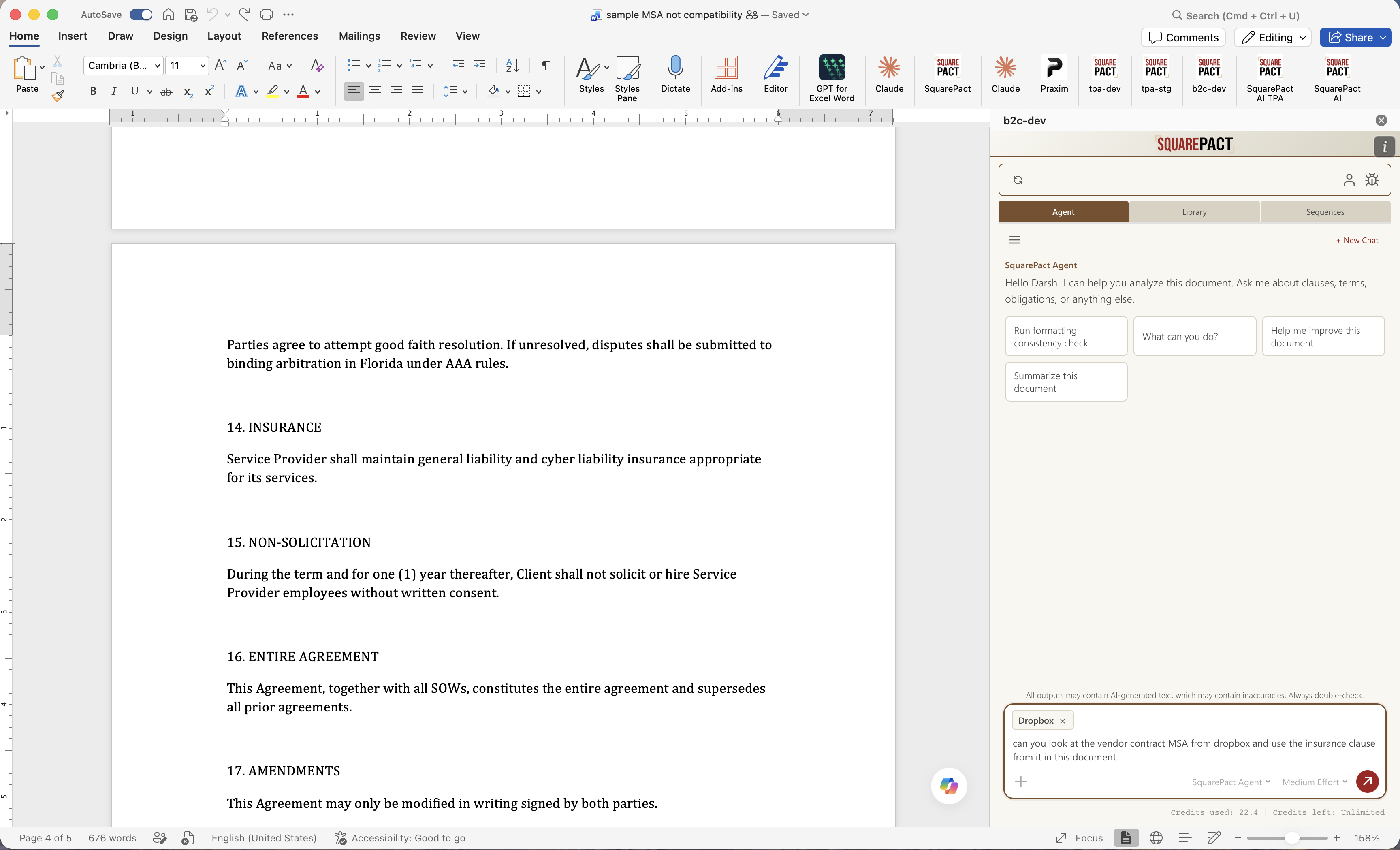
Here is the workflow:
Open the MCP menu in the SquarePact chat composer and connect your Dropbox account.
Keep the Dropbox chip attached to the conversation so the agent knows that source is available.
Ask for what you need in plain language. You don't need to know the exact path or filename.
SquarePact searches and reads only the Dropbox content needed for the task, subject to the permissions on your connected account.
If the answer means changing something, SquarePact proposes the edit in Word. You look at the difference and decide whether to apply it.
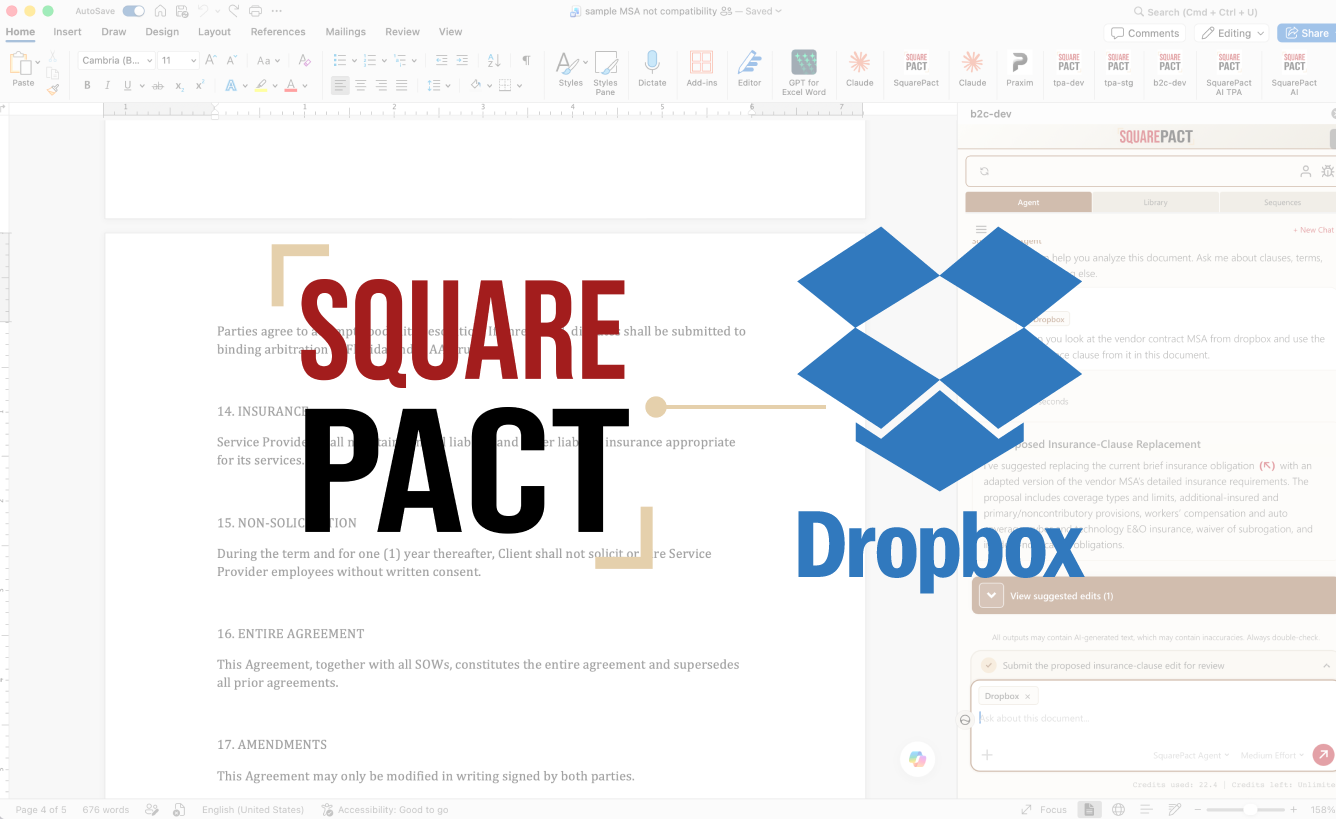
You stay in control of the document: SquarePact reads from Dropbox and leaves your files alone. Nothing changes in Word until you approve the edit.
Three Dropbox-to-Word workflows you can use today
Draft from approved language instead of memory
You're drafting a new agreement and you need the clause your team already signed off on for deals like this one. Ask SquarePact to pull that language out of Dropbox, tell you about any limits attached to it, and adapt it to the document you're in. The source file doesn't move, and the proposed clause shows up in Word for you to look at.
Try: "Find the approved limitation of liability clause we used for enterprise customers in Dropbox and adapt it to this agreement."
Complete forms and questionnaires from stored evidence
Vendor questionnaires, RFP responses, intake forms, due-diligence requests: most of what they ask for already exists in a policy, a certificate, a prior submission, or a service description. Instead of opening those one at a time, ask SquarePact to go get the evidence and fill in the document.
Your job shifts to checking whether each answer is current and correctly scoped, instead of hand-relaying every fact.
Try: "Use the current security policy and insurance certificate in Dropbox to complete the security and coverage sections of this questionnaire."
Review the document in Word against its source material
A draft can read beautifully and still contradict the policy, proposal, or executed agreement it's supposed to match. Ask SquarePact to compare what's open in Word against the Dropbox source and flag obligations, dates, party names, defined terms, or commercial details that don't line up.
When it finds something, it explains the difference and proposes the fix right there in the document you're already reviewing.
Try: "Compare the renewal and termination terms in this draft with the executed agreement in Dropbox and propose any corrections."
Why use MCP instead of another upload button?
MCP is a standard way for an AI application to use tools and data from another service. SquarePact is the client here, Dropbox runs the remote server. The acronym isn't the point. The point is that the connection is permissioned, reusable, and sitting inside your document workflow instead of getting rebuilt through manual uploads every single time.
You sign in on Dropbox's own authorization page. SquarePact never sees your Dropbox password, and the Word add-in never sees the credentials the backend uses. Dropbox still decides which personal, shared, and team files your account can reach.
The connection stays live until you disconnect it, revoke it, or Dropbox asks you to authorize again. Drop the Dropbox chip from a conversation and the agent stops reaching for Dropbox in later messages, without unhooking the account.
Frequently asked questions
Can AI search my Dropbox files from Microsoft Word?
Yes. Once you connect Dropbox through SquarePact's MCP menu, the agent can search files, browse folders, check metadata, and read supported content from inside a chat in Microsoft Word.
Do I need to upload Dropbox files into SquarePact?
No. There's no manual download or upload. SquarePact pulls the content it needs through the authorized Dropbox connection, and your Dropbox files don't get imported into SquarePact as separate documents.
Can SquarePact edit or delete files in Dropbox?
No. SquarePact reads from Dropbox. Your files stay exactly as you left them, and the only thing that changes is the Word document you approve.
Can it access Dropbox team folders and shared files?
Yes, within whatever the account you connected can already reach, including shared and team content. Your existing Dropbox permissions still apply.
Who controls the final document edit?
You do. SquarePact uses Dropbox content as context, but any resulting Word edit shows up as a suggestion. Nothing lands in the document until you approve it.
Dropbox access is live in SquarePact for Microsoft Word right now. Install SquarePact and bring the files you already trust into the document you're actually working on.
SquarePact: Reliable Document Intelligence
Subscribe to the newsletter: https://squarepact.com/mailing-list
My YouTube channel: https://www.youtube.com/@John_Licato