Contract editing is idiosyncratic. Two people can review the same agreement and want two different things without either of them being wrong. One team writes “Company” where another writes “the Company”. One reviewer wants indemnity and limitation of liability at the top of every summary, and another wants them last.
Most AI tools make you say all of that again every time, because each new document starts a fresh conversation. Yesterday’s instruction is gone, so you type it out once more.
My Preferences is the fix for that specific problem. You write down how you want SquarePact to work with you, once, and it carries across your documents and your devices. This is a guide to writing one that actually changes what you get back.
What is My Preferences?
It is a single text box, not a settings screen.
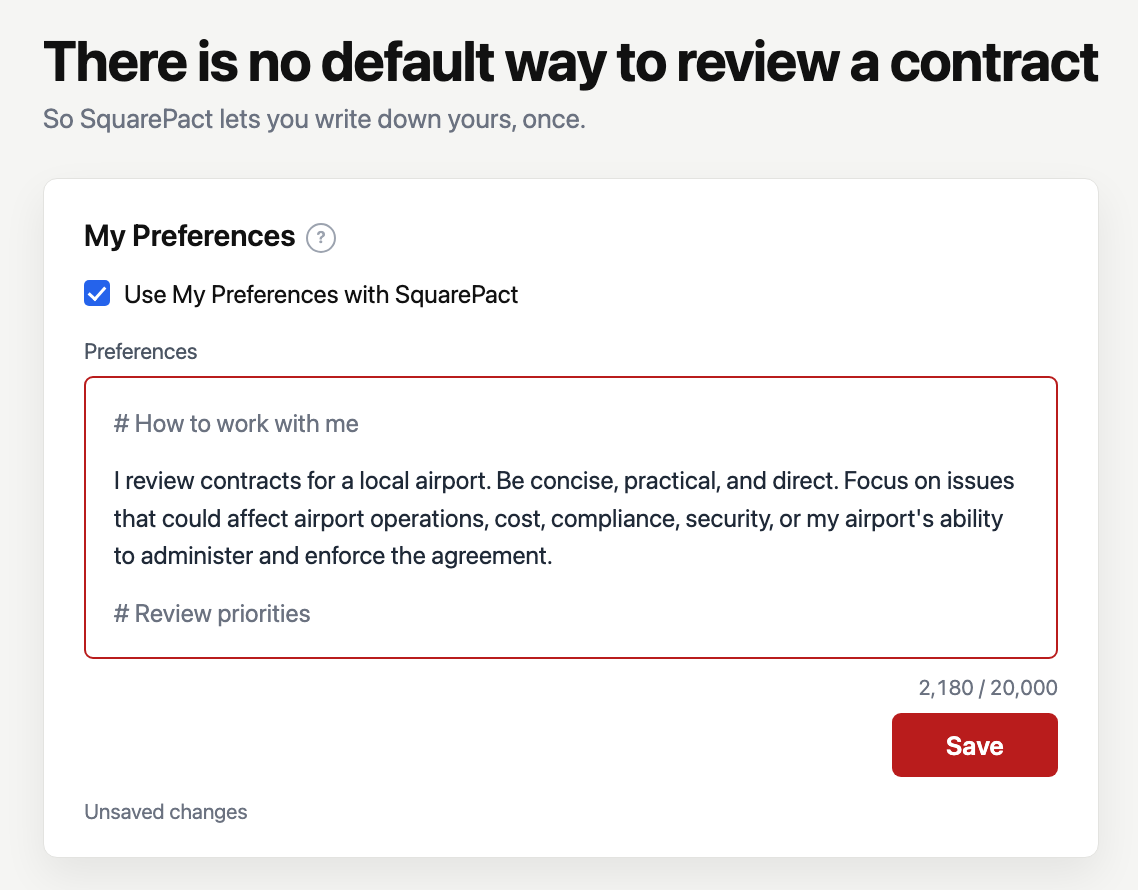
That distinction matters more than it sounds, because it changes what you should put in it. There are no toggles to flip and no dropdowns to choose from. You write prose, in your own words, up to 20,000 characters, and SquarePact takes it into account in your future chats. There is one checkbox that turns the whole thing on or off, and it is on by default.
If you have ever written a note for a new colleague explaining how you like documents handled, you already know the format.
Where do I find it?
Open the SquarePact task pane in Word and go to Settings. My Preferences is a section in there.
There is nothing to switch on first. The box is ready to type in, and the checkbox above it is already ticked. Nothing saves as you type, so write what you want and then select Save. The character counter starts warning you at 18,000 of the 20,000 available, which in practice is far more room than most people use.
What should I actually write in it?
Write the instructions you find yourself repeating.
That is the whole test, and it is more useful than any template. If you have typed the same sentence into three different documents this month, it belongs in the box. If you have never once needed to say it, leaving it out costs you nothing.
Four kinds of thing are worth writing down.
Your drafting conventions. The defined-term style your house uses, whether you want “shall” or “will”, how you want dates and cross-references formatted. These are the corrections that are most tedious to make by hand precisely because they are mechanical.
What you want looked at first. If your risk is concentrated in indemnity, limitation of liability and termination, say so, and say it in that order. A reviewer who always reads the same three clauses first is describing a priority, and a priority is exactly the sort of thing that gets lost when a conversation restarts.
How you work rather than what you know. Whether you want a short answer or a thorough one, whether you want the reasoning shown or the conclusion alone, whether you would rather be asked a clarifying question than given a guess.
The context that changes everything. What you actually do, and for whom. Somebody reviewing agreements for a small airport authority has different concerns from somebody papering enterprise software deals, and one sentence saying which you are does more work than a page of style rules.
Three that should work, and three that should not
Nobody has measured this yet, and we would rather say so. What follows is reasoning from how your text is used rather than findings from testing. Your preferences are placed in the model’s instructions under a heading telling it to follow them when relevant, and that is what predicts which ones land.
Likely to work, because each names a behaviour somebody could check you on:
“When you summarise a contract, lead with indemnity, limitation of liability, and termination, in that order.”
“In anything you draft, write Company and Supplier rather than the Company and the Supplier.”
“Give me the redline first and the explanation second, and keep explanations to two sentences.”
Likely to do nothing, and each fails for a different reason:
“Be thorough.” It names no behaviour to change, so there is nothing to comply with. This is the commonest way a sensible-sounding preference does no work.
“Never ask me questions.” It fights SquarePact’s own rules, which win. It would also fight the confirmation card, which exists to ask you things.
“Remember that our counterparty on the Acme deal is Jane.” That is a fact about one document rather than a way of working, and it will be refused. The same applies to clause language from the contract in front of you, temporary constraints, credentials, and legal conclusions.
The rule underneath all six: preferences are for how you want to work, not for what is in a particular contract. If the sentence would stop being true when you close the document, it does not belong in the box.
Can I ask SquarePact to write my preferences for me?
Yes, and this is the better half of the feature.
You do not have to open Settings at all. In the middle of your work, say what you want remembered and SquarePact will offer to save it. “Remember that I always want indemnity flagged first” works exactly as written. So does anything using “always”, “from now on” or “going forward”, and so does “I prefer” or “I strongly prefer” paired with a scope like every response, every document or every future task. You can also point backwards at something you already said: “edit my preferences to reflect that”, and it works out what “that” means from the conversation rather than making you repeat yourself.
Then it shows you a card before anything changes. It is headed “Update My Preferences?” and it has two halves. “Remove from your preferences:” shows the exact text coming out, and “Add to your preferences:” shows the exact text going in, with the word “Nothing” on whichever side is empty. You get two buttons, “Apply this change” and “Keep my current preferences”, with neither one preselected or recommended.
Read the removal half. The agent rewrites the whole box rather than adding a line to the end, so it composes the complete new text and shows you the difference. Somebody who assumes it appends will skim past the half that matters.
Only pressing “Apply this change” writes anything. Saying “sure” in the chat, choosing “Other”, saying “you choose”, or suggesting different wording are all treated as not having confirmed.
The trap worth knowing about
SquarePact doing what you just asked is not the same as SquarePact remembering it.
This is the one failure we have actually seen rather than predicted. In testing, a user wrote “I strongly prefer … every interaction”, and the agent did exactly that for the rest of the turn and never offered to save it. The behaviour was right and the memory never happened.
So when you say something you want to stick, look for the card. If no card appears, it did not save, and you can ask again more directly or open Settings and write it in yourself.
One thing we will not claim
SquarePact asks before it changes your preferences. We are not telling you it cannot change them without asking.
The difference is real and worth your knowing. The confirmation step is an instruction the model is given and follows, rather than a lock in the code that makes writing impossible until a card is shown. The save path checks that you are working from the current version and that the text fits the length limit, and it does not verify that a card ever appeared. In practice you will see the card. We would rather tell you what is built than offer you a guarantee we cannot stand behind.
When is this worth doing?
It is worth doing the second time you correct the same thing.
You have a house style and your AI does not know it. Firms have written conventions and tools ignore them. If your style guide exists as a document, the useful parts of it can go straight in the box.
You work in one domain and the defaults are written for another. A commercial property lawyer and a procurement lead are both reviewing contracts, and almost nothing about what they need flagged is the same.
You are the second reviewer. If your job is checking somebody else’s work, saying so changes what a useful answer looks like, because you want the disagreements surfaced rather than the document explained.
You keep getting answers at the wrong length. This is the smallest of the four and often the most annoying, and it takes one sentence to fix.
It is not worth doing if you use the tool occasionally for one-off questions. Preferences pay for themselves through repetition, so with no repetition there is nothing to save.
What it will not do
It steers what SquarePact does. It does not guarantee it.
This is the most important thing on the page and the thing most likely to disappoint somebody who misreads it. You are telling a model how you like to work, in words, and it takes that into account. You are not setting a switch that changes the program’s behaviour deterministically. Any sentence of the form “SquarePact will always do X once I have written X” is not something we would stand behind.
Your preferences also sit underneath SquarePact’s own rules on confidentiality, safety, tool use and citation, which they do not override. If you write a preference that conflicts with how your documents are handled, the handling wins.
Four smaller limits, all real:
It applies to the SquarePact Agent rather than to an AI model you connect yourself.
A change takes effect on your next message rather than partway through one already in flight.
It is ignored when the agent is servicing a read-only request about a different document.
Nothing saves as you type, so a preference you did not save is a preference that does not exist.
What trips people up
Four of these we expect and one we have watched happen. The one we have seen is above, where SquarePact does what you asked without offering to remember it.
Typing in the box and closing Settings. Nothing saves as you type and Save is a button, so a tab closed in a hurry takes your preferences with it.
Assuming the checkbox and the text are one control. They are not. Unticking the box keeps everything you wrote and stops it being applied, which is what you want when one document needs handling differently.
Expecting a change to land mid-conversation. It applies from your next message rather than the one already running, so if you have just saved something, send another message before deciding it did not work.
Writing preferences that argue with the product. They lose, by design, and the clearest example is telling it never to ask you anything.
Frequently asked questions
Do I have to write it all at once? No. Most people will not know their own conventions until they notice themselves repeating one, and the box is there to be added to. Write the first thing you are sure of and come back.
Does it work across my devices? Yes. Preferences are held against your account rather than a document or a machine, so what you write on your desktop applies when you open Word somewhere else.
Will it change how SquarePact handles confidential documents? No. Confidentiality, safety, tool use and citation rules sit above your preferences and are not affected by anything you write.
What if I want to turn it off for one document? There is a checkbox above the box that turns preferences off. It is on by default and unticking it stops them being applied.
How long should it be? Shorter than you think. The limit is 20,000 characters and most useful preference sets are a few paragraphs, because the instructions worth writing are the ones you actually repeat.