You can write every word yourself and still have someone say it sounds like AI. Before you send it, you may want to know which passages could prompt that reaction and whether they'd be clearer with a revision.
AI Slop Check is SquarePact's AI slop detector for Word: it flags passages that might sound AI-written to three simulated reader groups and points to the lines behind their ratings. It cannot tell you who wrote the text. You decide what, if anything, to change.
Why human writing can sound like AI: AI detector false positives
A detector can label human writing as AI-written. In a 2026 study of academic manuscripts written before ChatGPT, the rate varied sharply across detectors, and professional human editing moved some scores up and others down. That study tested academic manuscripts and research detectors, so its results don't tell you how a commercial detector would score your document.
People are quick to read clues into style. In a 2023 study of short online self-presentations, readers sometimes took long words and unusual word pairs as signs of AI, though those features appeared more often in the human samples. In one of the study's experiments, readers identified the source correctly 52.2% of the time. That figure is about the tested profiles, not a prediction for your next paper or proposal.
In experiments with news headlines, people rated human-written headlines less accurate and were less willing to share them when the headlines were falsely labeled as AI-generated. The measured effects were small, and the researchers studied labels rather than spontaneous reactions to style. The words didn't change. The label did.
In a lawsuit against the University of Michigan, a student alleges that an instructor accused her of using AI partly on the basis of her writing style and AI comparisons made from her outline. She denies using AI. Those are allegations in a complaint, not findings by a court.
I wouldn't accuse someone of using AI because a sentence sounds polished. But if a sentence says little beyond “innovative,” “seamless,” and “at scale,” I'd want to look at it again. The same advice applies whether a person wrote the whole document or used AI while drafting.
What SquarePact's AI Slop Check shows
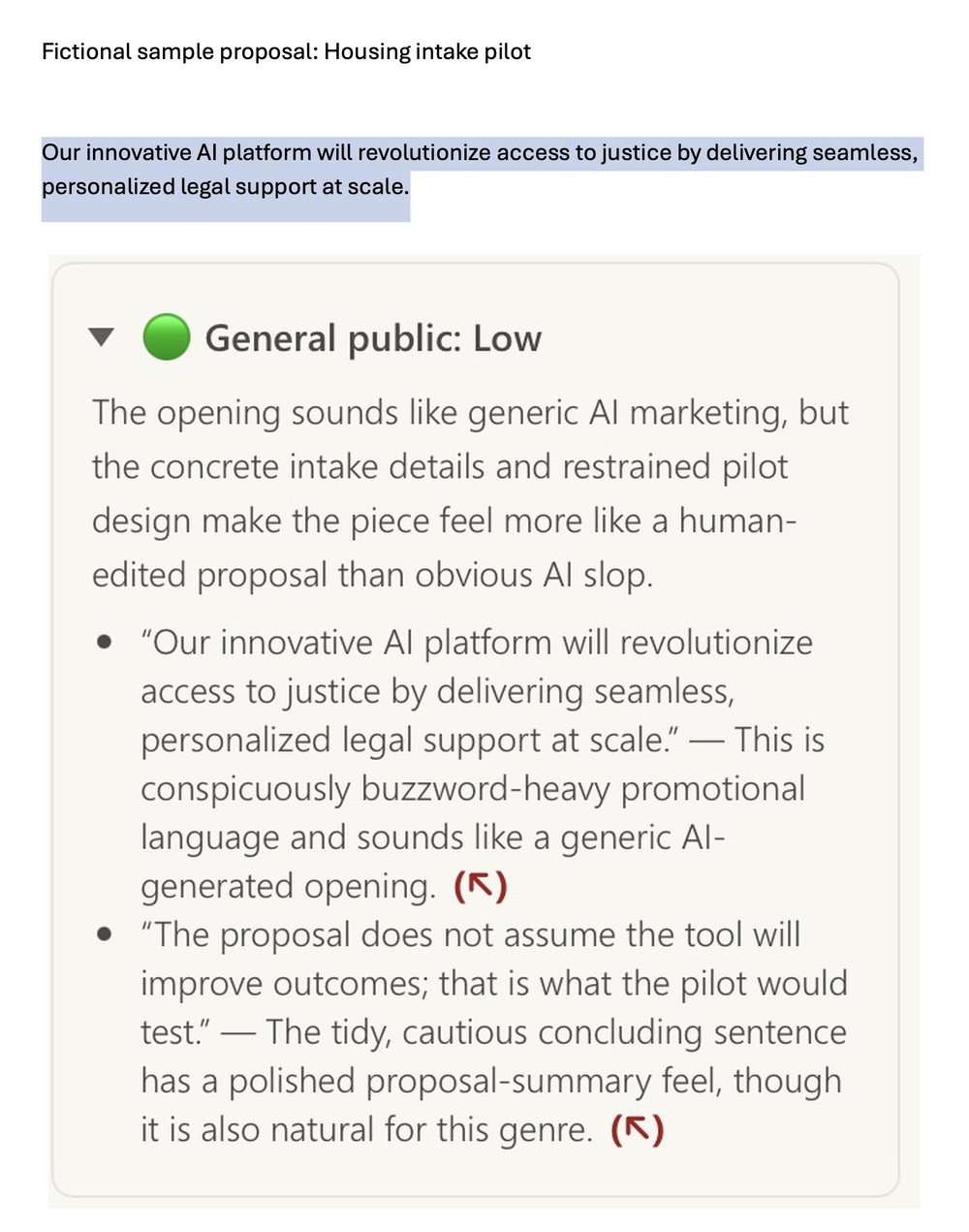
AI Slop Check reads the first 1,500 words of your document through three simulated reader perspectives: the general public, highly technical experts, and legal professionals. Each gives a Low, Medium, or High rating for the impression that the writing might be AI-generated, along with an explanation. When the report can point to supporting text, it quotes the passage. For text in the open Word document, an arrow takes you to that spot.
No real readers participate in the check. The legal perspective is instructed to account for the document's genre, including normal legal formality. The model can still make a poor call, and a perspective may sometimes be unavailable. Use the explanations to decide which passages deserve another read.
The report may also include Phrases worth a second look. That section is separate from the audience ratings. A phrase appearing there is a suggestion to review it, not a claim about authorship.
How to use AI Slop Check in Word
These screenshots show an invented proposal and a live SquarePact report.
-
Open your document in Word and let SquarePact finish analyzing it. In the SquarePact pane, open Skills, expand AI Slop Check, and click Run. You can also type
/ai-slopin the chat.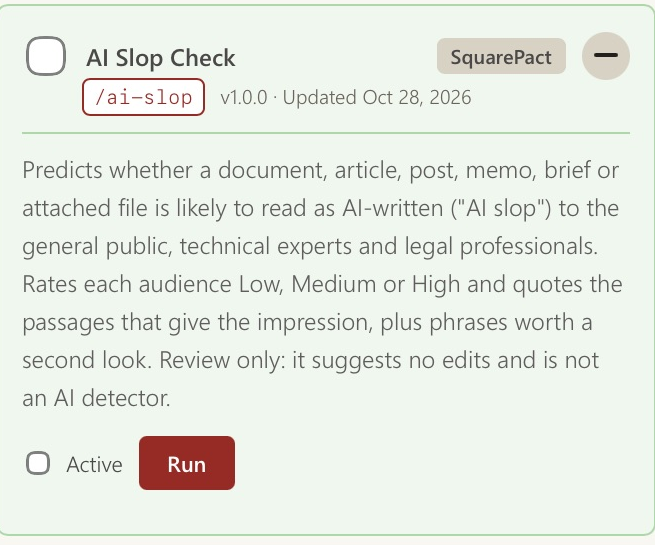
-
Read the explanation under each audience rating. In this example, all three perspectives rated the document Low overall. Yet each called out the opening line, which promised to “revolutionize access to justice” without saying what the proposed tool would actually do. The report also noticed the more concrete details later in the document, including attorney review and what the pilot would measure. A Low rating didn't mean every sentence worked.
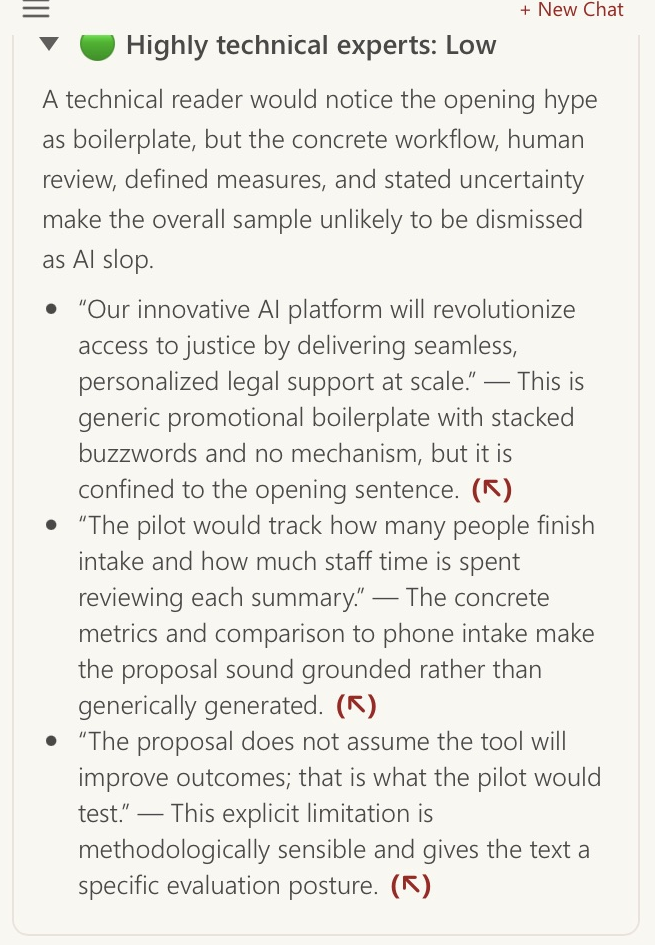
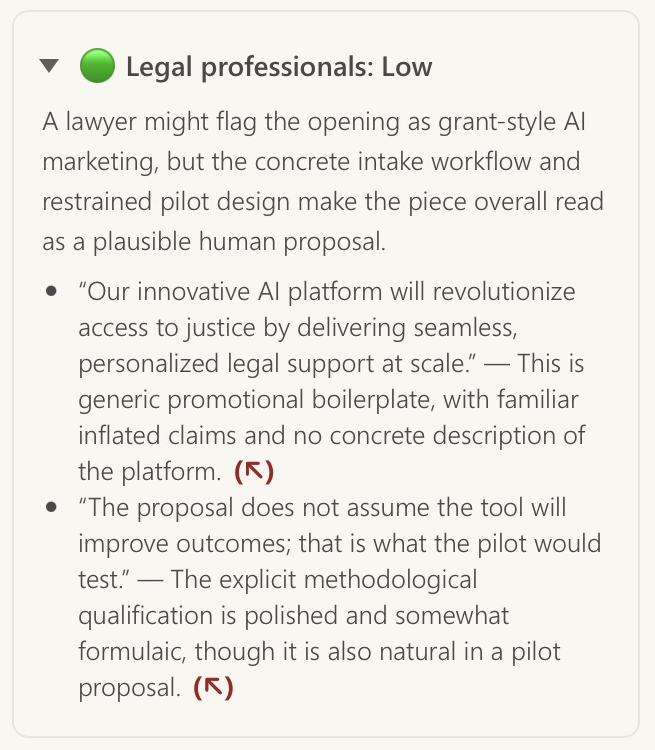
The technical and legal views from the same run. The general-public view appears in the main image above.
-
Go to the quoted passage. Click the arrow next to a quote to select that text in the open Word document. Here, SquarePact selected the opening sentence. It made a sweeping promise, while the following paragraphs described a much smaller pilot. That's the gap I'd fix.
-
Revise the sentence in your own words, then run the check again if you want. For this example, I'd replace the opening with what the proposed intake form would do: ask about a housing notice and its deadline, prepare a summary for an attorney to review, and measure completion and staff review time during a pilot. In your own document, keep the details that are true and useful to your readers.
You can check a readable file attached in SquarePact chat too, using a request such as /ai-slop check proposal.docx. Supported attachments include .docx, .pdf, .txt, and .md. A PDF needs extractable text; the check doesn't read an image-only scan. Navigation arrows for attached files don't jump into the open Word document.
What the check cannot tell you
AI Slop Check cannot tell whether someone used AI. It evaluates the impression a passage may give. The check reads text, so it doesn't assess images, layout, or how a PDF looks on the page. It doesn't verify facts or citations, check legal compliance, or edit the document for you.
If a report flags a passage, read it in context. Keep a formal sentence when the genre calls for it. Change a vague sentence when you can say something more specific and true. That decision belongs to you.
For more SquarePact walkthroughs like this one, join the mailing list.
To try AI Slop Check in Word, install SquarePact.