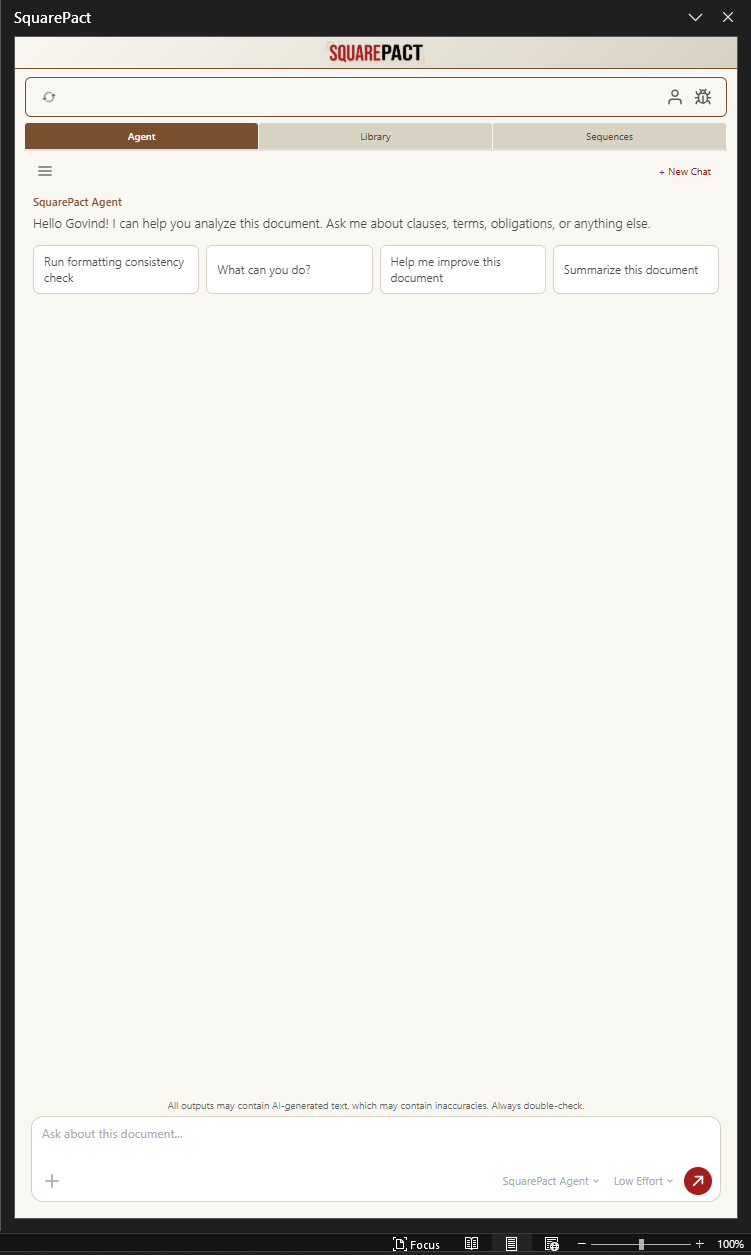
I joined Actualization.AI in September 2025. It was my first startup job, and most of my work became the frontend of SquarePact, our AI contract review add-in for Microsoft Word. I had never built an Office add-in. I did not know what OOXML was. A year later I have opinions about both, and most of them came from breaking things.
If you are about to build inside Word, or any other Office app, this is what I wish someone had handed me a year ago. And if you have ever wondered why AI tools that edit documents make you approve every single change, there is a reason. Half my job was that reason.
Everything below shipped to real users. One choice we ended up reversing, and that one taught me the most.
Why Build Inside Microsoft Word?
Contracts live in Word. They arrive as .docx files carrying numbered clauses, cross references, defined terms, and tracked changes from the other side.
The obvious alternative is a chat site where you paste text in and copy answers back. Pasting strips the numbering and the tracked changes. Whatever the AI gives you has to be merged into the real document by hand, and that step is where mistakes happen. So we went the other way and brought the AI to the document.
That decision puts your whole product inside a task pane, a narrow panel docked beside the document that talks to it through Office.js. The pane is about 350 pixels wide, it lives inside someone else's application, and the file next to it is usually a contract in the middle of a negotiation. Everything is one column. Suggestions are cards, not tables. Anything that needs more room expands in place instead of opening beside itself.
Why Are AI Edits Suggestion Cards?
This was the first big design decision: the model never writes into your document on its own. Every proposed change appears in the pane as a card showing the current text and the replacement. You apply it or you dismiss it. Until you click apply, the document does not change.
Part of the reason is trust. Nobody who reviews contracts for a living will accept a tool that rewrites clauses while they look away. With cards, nothing changes until you say so, and checking the AI's work happens in the normal flow of using the tool.
Part of it is practical. If a model applies ten edits directly, you then have to hunt through the document to find and check each one. Cards keep the review in one place, in order, with the old text and the new text together.
And there is an engineering reason. Every change enters the document through one code path, and one path is something you can test properly.
How Do You Change a .docx Without Breaking It?
A Word file is a zip archive full of XML, a format called OOXML. Formatting, styles, list numbering, and tracked changes all live in that XML, tangled together more than you would expect.
In our early versions we edited that XML directly, and that is where most of my first months went. Unzip a document, change the XML, zip it back, open it in Word, see what broke. Word is not gentle about mistakes. Sometimes it repairs your file quietly, which hides the bug. Sometimes it refuses to open the file at all, which at least is honest. The documentation tells you what each element means. It does not tell you what happens when you replace a paragraph that carries someone's tracked changes. That part I learned by breaking test documents until I stopped breaking them.
This is the choice we later walked back. Recently we moved our edits onto Office.js calls running in a sandboxed environment. When you write OOXML yourself, you are re-creating bookkeeping that Word already does, and every piece you re-create is a new way to corrupt a file. Calling Word's own API hands that bookkeeping back to Word. We gave up some control and, in exchange, a whole class of bugs stopped being possible.
I do not regret the months in the XML. When a document comes back wrong, I can unzip it and read exactly what happened.
What Is Your Own Agent Mode?
By default the add-in runs on the SquarePact agent, our cloud service tuned for contract review. Some users want their own model instead. They already have an account with OpenAI, Anthropic, or Google, and they want the model they know doing the reading. Your Own Agent mode is the frontend for that.
The target was a setup that takes about two minutes. Pick a provider: OpenAI, Anthropic, or Google. Paste an API key from their console. Pick a model, like GPT, Claude, or Gemini, and save. The key is stored on your machine, and your document text goes straight from your machine to the provider you picked. It does not pass through our servers.
Two smaller choices mattered more than they look. The setup screen says in plain words where your document text will go, before you send anything, because nobody should have to find that in a privacy policy. And responses are capped based on the effort level you choose, so one runaway answer cannot quietly eat your API credit.
The announcement post covers what the feature does, and the setup guide walks through getting a key from each provider.
Where Does OpenClaw Fit?
An API key still means a cloud model reads your document. Some teams want the model on their own hardware, or want the add-in talking to an agent they built themselves. OpenClaw covers that. It connects the add-in to a local agent running on your machine, and I wrote the client that manages the connection. The pairing is tied to your device, and once it is set up, chat and edits flow through the same suggestion cards as everything else.
What I Would Tell Someone Building Their First Office Add-In
Turn tracked changes on in your test documents from day one. Most of the surprises live there.
When output looks wrong, unzip the .docx and read the XML. The format stops being scary once you have seen it a few times.
Design for the narrow pane first. An interface that works at 350 pixels will survive anywhere.
Let Word do the bookkeeping whenever its API covers your case. Write raw OOXML only when there is no other way.